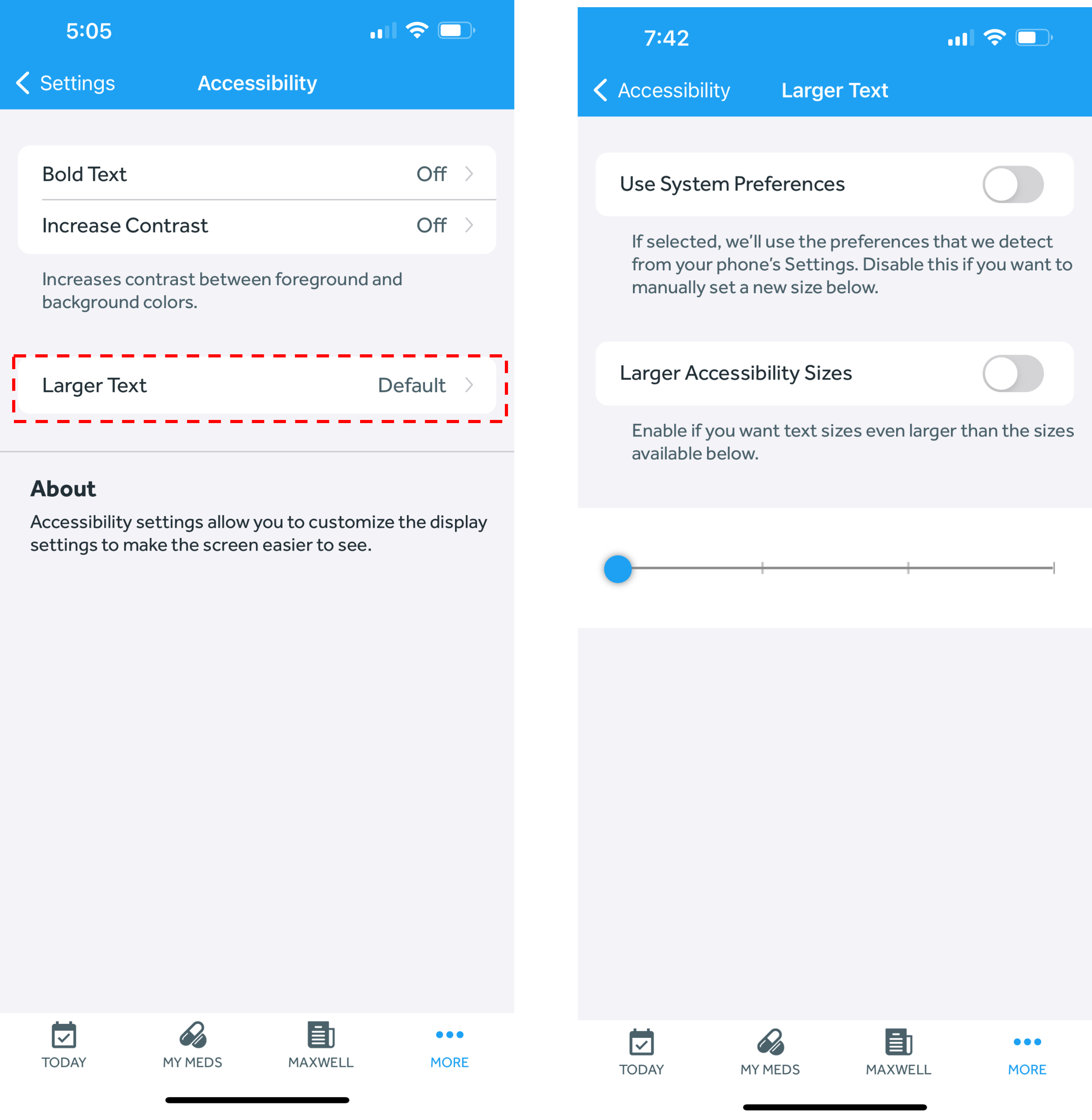
The Banner Medications app includes accessibility features to customize display settings and make the app easier to see. The Larger Text accessibility feature increases the size of the text in the Banner Medications app, making it easier to read. Here's how to enable Larger Text:
- In the Banner Medications app, click on the navigation menu at the top left
- Click the “Settings” button
- Under “Preferences,” click the “Accessibility” button.
- Click "Larger Text"
- Adjust the sliding bar to choose from 3 larger text sizes.
- If you need even larger text, toggle on "Larger Accessibility Sizes" which will unlock larger text size options
If you'd instead prefer the Banner Medications app to use the same font sizes as your device, toggle on "Use System Preferences."